
Setting up your NBN service with Elevate is simple. This guide provides step-by-step instructions for connecting your equipment based on your NBN technology type. Follow the steps below to get your NBN connection up and running smoothly.
1. Unbox Your Equipment
Check Contents:
-
Ensure you have all the necessary equipment, which may include:
-
Modem (if provided by Elevate)
-
Power adapter for the modem
-
Ethernet cables (usually yellow or grey)
-
DSL cable (phone cable, for FTTN/B connections)
-
NBN Connection Device and its power adapter (for FTTC/HFC/Fixed Wireless/FTTP)
-
Coaxial cable (for HFC connections)
-
-
If you are using your own modem (BYO), you will need to configure it manually later in the process. Refer to our specific guides or the "How to Connect to the Internet" guide for PPPoE settings if applicable.
2. Connect Your NBN Equipment by Technology Type
Find your NBN technology type below and follow the specific connection steps.
NBN Fibre to the Premises (FTTP)
-
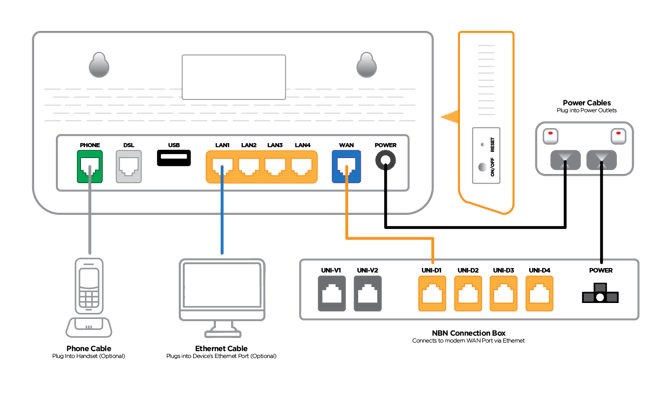
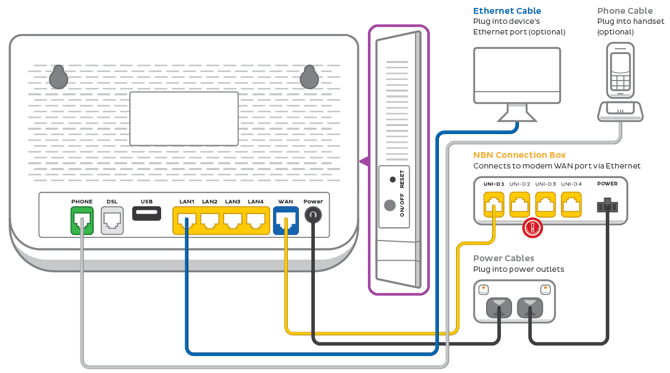
Locate NBN Box: Find the NBN Connection Box (also called NTD - Network Termination Device) installed inside your home by NBN.
-
Power Up NBN Box: Ensure the NBN Connection Box is plugged into a power outlet and turned on.
Connect Modem: Plug one end of an Ethernet cable into the UNI-D1 port on the NBN Connection Box. Plug the other end into the WAN port (often coloured blue or labelled 'Internet') on your modem.
NBN Fibre to the Node (FTTN) or Fibre to the Building (FTTB)
-
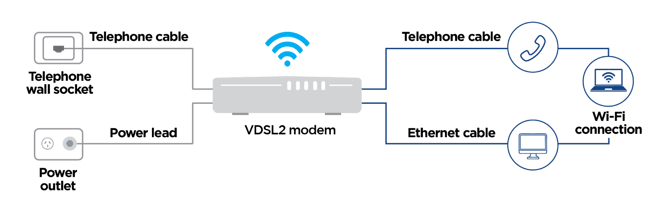
Locate Socket: Find the active phone wall socket in your home.
-
Connect Modem: Plug one end of the DSL cable (phone cable) into the phone wall socket. Plug the other end into the DSL port on your modem.
-
Power Up Modem: Connect the power adapter to your modem and plug it into a power outlet.
-
If using an Elevate-supplied TP-Link modem, see the TP-Link Deco X20-DSL Setup Guide.
-
NBN Fibre to the Curb (FTTC)
-
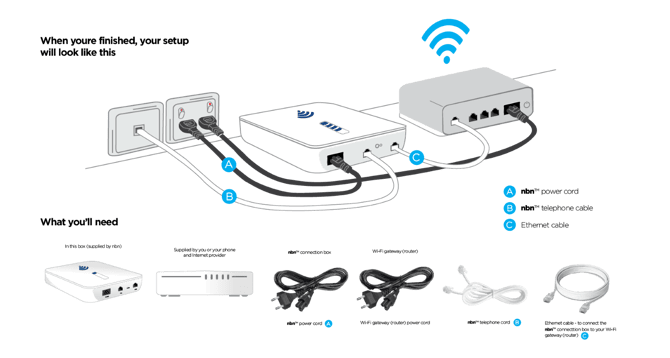
Locate NBN Device: Find the NBN Connection Device (NCD). This small white box connects to your phone socket. If it's missing, contact Elevate support.
-
Connect NCD to Socket: Plug the NCD into the phone wall socket using the supplied phone cable.
-
Power Up NCD: Plug the power adapter into the NCD and a power outlet. Wait for the lights to stabilize.
Connect Modem: Connect an Ethernet cable from the Gateway port (or LAN port) on the NCD to the WAN port on your modem.
NBN Hybrid Fibre Coaxial (HFC)
-
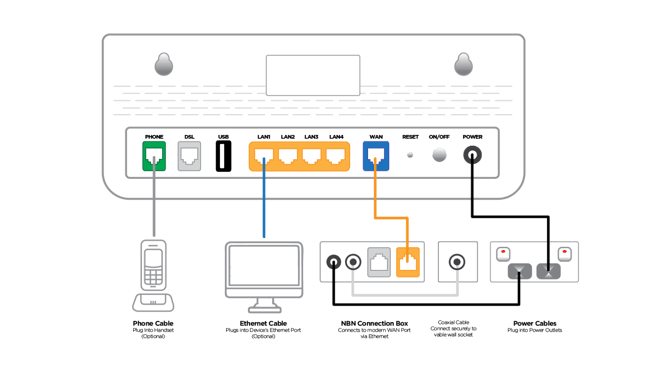
Locate Outlet: Find the coaxial wall outlet (typically used for cable TV).
-
Connect NBN Box: Screw one end of the coaxial cable onto the wall outlet and the other end onto the NBN Connection Box (NTD).
-
Power Up NBN Box: Plug the power adapter into the NBN Connection Box and a power outlet.
-
Connect Modem: Connect an Ethernet cable from the active port (usually UNI-D1) on the NBN Connection Box to the WAN port on your modem.
NBN Fixed Wireless
-
Check Antenna: The NBN outdoor antenna and indoor NBN Connection Box (NTD) should already be installed by an NBN technician.
-
Locate NBN Box: Find the indoor NBN Connection Box.
-
Power Up NBN Box: Ensure the NBN Connection Box is plugged into a power outlet and turned on.
-
Connect Modem: Plug one end of an Ethernet cable into the UNI-D1 port on the NBN Connection Box. Plug the other end into the WAN port on your modem.
3. Set Up Your Modem
-
Elevate Supplied Modems: If your modem was supplied by Elevate (e.g., Calix GigaSpire, NetComm NF20Mesh), it is usually pre-configured. Simply power it on after connecting it as per Step 2.
-
Plug the power adapter into your modem and a power outlet.
-
Press the power button if it has one.
-
Wait a few minutes for the modem lights to stabilize (often solid green).
-
Refer to the specific setup guide for your modem model if needed:
-
-
BYO (Bring Your Own) Modems: Manual configuration is usually required.
-
Power On: Power on your modem after connecting it as per Step 2.
-
Connect Device: Connect a computer to the modem using an Ethernet cable or Wi-Fi (use default Wi-Fi details usually found on a sticker on the modem).
-
Access Admin Interface: Open a web browser (like Chrome, Firefox, Edge) and enter the modem's admin IP address (commonly http://192.168.1.1 or http://192.168.0.1 - check your modem's manual). Log in using the admin username/password (also often on the sticker or manual).
-
Configure Settings: Look for WAN, Internet Setup, or Broadband settings.
-
Select the correct Connection Type: This is usually PPPoE for most Elevate NBN services (except some FTTP/HFC which might use DHCP/IPoE - check your activation email or contact support if unsure).
-
Enter your PPPoE username and password (provided in your Elevate activation email).
-
Configure your Wi-Fi Network Name (SSID) and Password.
-
Save settings and potentially restart the modem.
-
-
See our How to Connect to the Internet guide for more on PPPoE.
-
4. Test Your Connection
Check Status Lights:
-
Observe the lights on your NBN Connection Device (if applicable) and your modem. Generally, solid green lights indicate a successful connection. Consult your device manuals for specific light meanings.
-
Common Issues & Meanings:
-
Red light: Often indicates a connection failure. Recheck cables, restart devices.
-
Flashing amber/orange: Device might be starting up, synchronizing, or attempting connection. Wait a few minutes.
-
No light: Check power cables, power outlet, and power switches.
-
Verify Internet Access:
-
Try browsing a website on a connected computer or phone.
-
Still having issues? Check for incorrect cable connections, ensure PPPoE details are correct if using BYO, or see our Common Troubleshooting Steps guide.
5. Need Help?
If you encounter any difficulties during the self-installation process, our customer support team is ready to assist.
Contact Information:
-
Phone: 1300 159 250
We're here to help!